 Mosaizer Pro 12 -
Help |
Mosaizer Pro 12 -
Help
Edit, search and replace
Almost
every photo mosaic picture can be edited, where each of
the cells can be selected and replaced with other cells. The user fully controls the
choice and selection. The cell edit function is located in the control window for
'Colours'. The cell
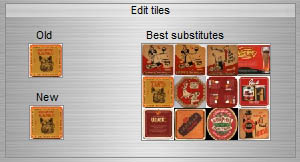
editor The cell editor is activated as follows: In the 'Edit tiles' box the
selected tile is reflected, along with twice the amount of top 'X' best matches.
In case the 'Variety' was set to 6, the 12 best
matches are now seen (from top-left to bottom-right). As explained in the Colour
matching chapter, the selected tile is not necessarily the best match because of
randomness of tiles. In the picture below, the selected tile is the third best
match, out of 6 (so: 12 substitutes are seen). The information in this box is
live-updated while the mouse moves with the SHIFT button
pressed. Replacing a
tile The 'old' tile is the originally placed miniature
picture, the 'new' tile is - for the time being- the
same. When you have made a choice which tile needs to be replaced,
release the SHIFT button and move the mouse to the box 'Best
substitutes'. To replace the selected tile with the new tile, move back
with the mouse to the mosaic picture, and right-click on the result
picture. A menu will now pop-up, providing two possibilities:
Similar to the photo mosaic tile selection, use the SHIFT
button while moving the mouse pointer over the best substitutes and stop at the
one that will replace the original tile. The 'new'
tile should now be the substitute tile, while the 'old' tile is the tile that
needs replacement. The green rectangle is still seen on the resulting
photo mosaic picture. Then release the SHIFT button again. All choices are now
made and ready for replacement.
Select your choice and wait until all changes are applied. Repeat these steps for each tile or tiles that you want to replace. This works for all rectangular patterns, but not for the Circulars. Please bear in mind that this edit process is irreversible , and can't be undone once the tile has been replaced!